2 min to read
Local Storage Extension 101
Ever want to save variables on someone’s browser automatically? This tutorial is for you!
First some terms:
Namespace: What your variable will be stored under, like a variable name, remember this, as you will need it to grab your data later on!
Storage: The term used for the location of the variables.
Score: The variable in question, change it to change the variable being stored.
Now that you know some basic vocabulary, lets get into the tutorial!
Step 1: Create A New Project
First, you will want to make a brand new project on Codetorch, or your Scratch mod of choosing.
Then create a variable, you can all it whatever you want.
Step 2: Save The Variable
Make sure your variable is set to a value, then choose what you want to save it under, you can go with anything, just remember it for later.
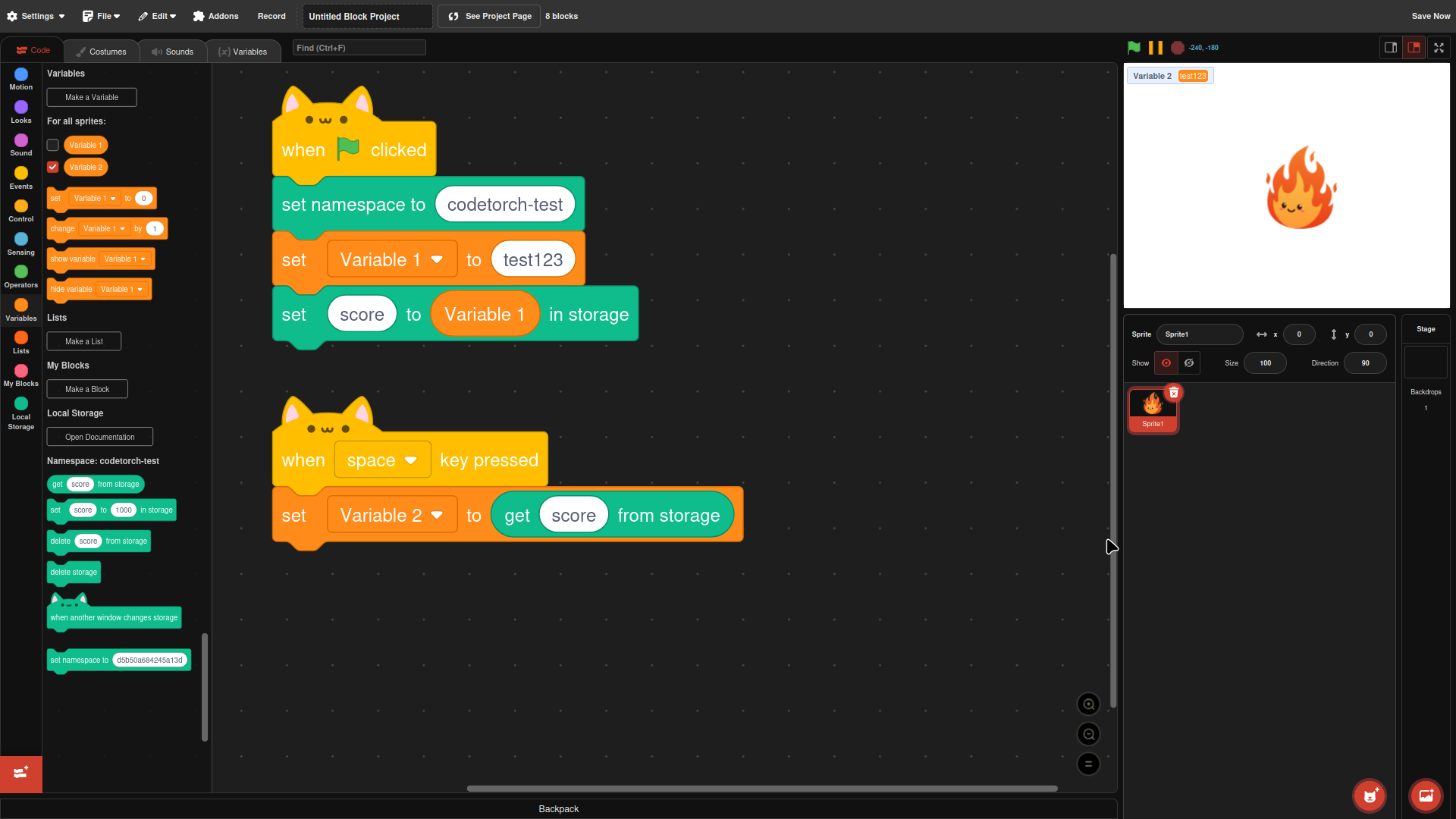
Now put these blocks in this order and run it, this will be our setup code.
[When green flag clicked]
[Set namespace to (your namespace here)]
[Set (variable name) to (whatever you want goes here)]
[Set (score) to (put variable block here)]
If done properly, this should put the variable in your browser storage.
Step 3: Load The Variable
This is easily the most important step in the process, getting your data.
First, create a new variable, call it whatever you want.
Now, make sure that variable is visible on the project page.
Create this block string:
[When (Space Bar) Pressed]
[Set {Variable 2} to (get [score] from storage)]
If done correctly, when you click the space bar, your second variable should show your first variable!
Applications
There are many things you can use this for such as:
- Saving data on projects for local high scores!
- Remembering things done in a project, even if the project is restarted!
- Making a variable that more than one project can interact with!
The possibilities are endless!
-
That’s it for this tutorial, if you have any questions, please, ask them in the comments! This is The CT Files Team, signing off!

Comments